Customize and download
What this is
Adjust your QR code's appearance and download it as PNG, SVG, or PDF for print, social media, or marketing materials.
Before you start
- You have a QR code created (from QR Codes or a link's detail page).
Steps
- Open QR Codes and click Design QR on a code — or click the QR button on a link.
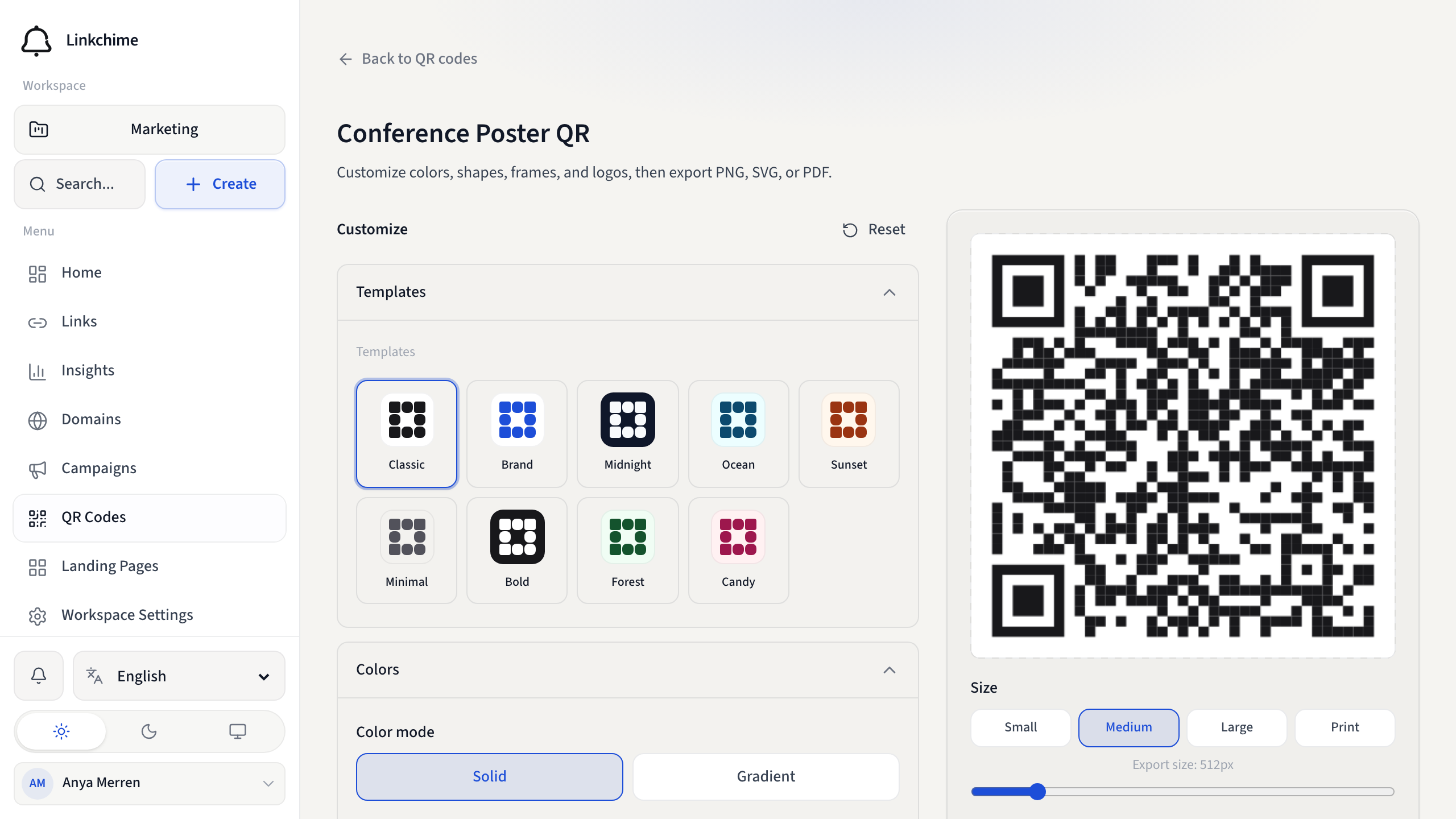
- In the QR studio, customize:
- Templates — start from a ready-made look
- Colors — body, background, gradient, and optional eye colors
- Shape — body modules plus separate eye frame and eye ball styles
- Logo — optional center image or short label
- Frame — optional call-to-action around the code
- Quiet zone and error correction — higher levels help when adding a logo
- Size — export resolution, including print
- Download PNG, SVG, or PDF.
- Copy the short URL if you also want to share the link.
What happens next
Use the file in print materials, presentations, or digital assets. Scans are tracked in Insights (if QR scan tracking is enabled on your plan).
Tips
- Use transparent background for placing QR codes on designed assets.
- Keep a dark body on a light background for reliable scanning. The studio warns when contrast is too low.
- If you change a link's short path, printed QR codes for the old path stop working.
Related pages
Ready to try it?
Create a free account and put these guides to work on your next campaign.