
Two-factor authentication
What this is
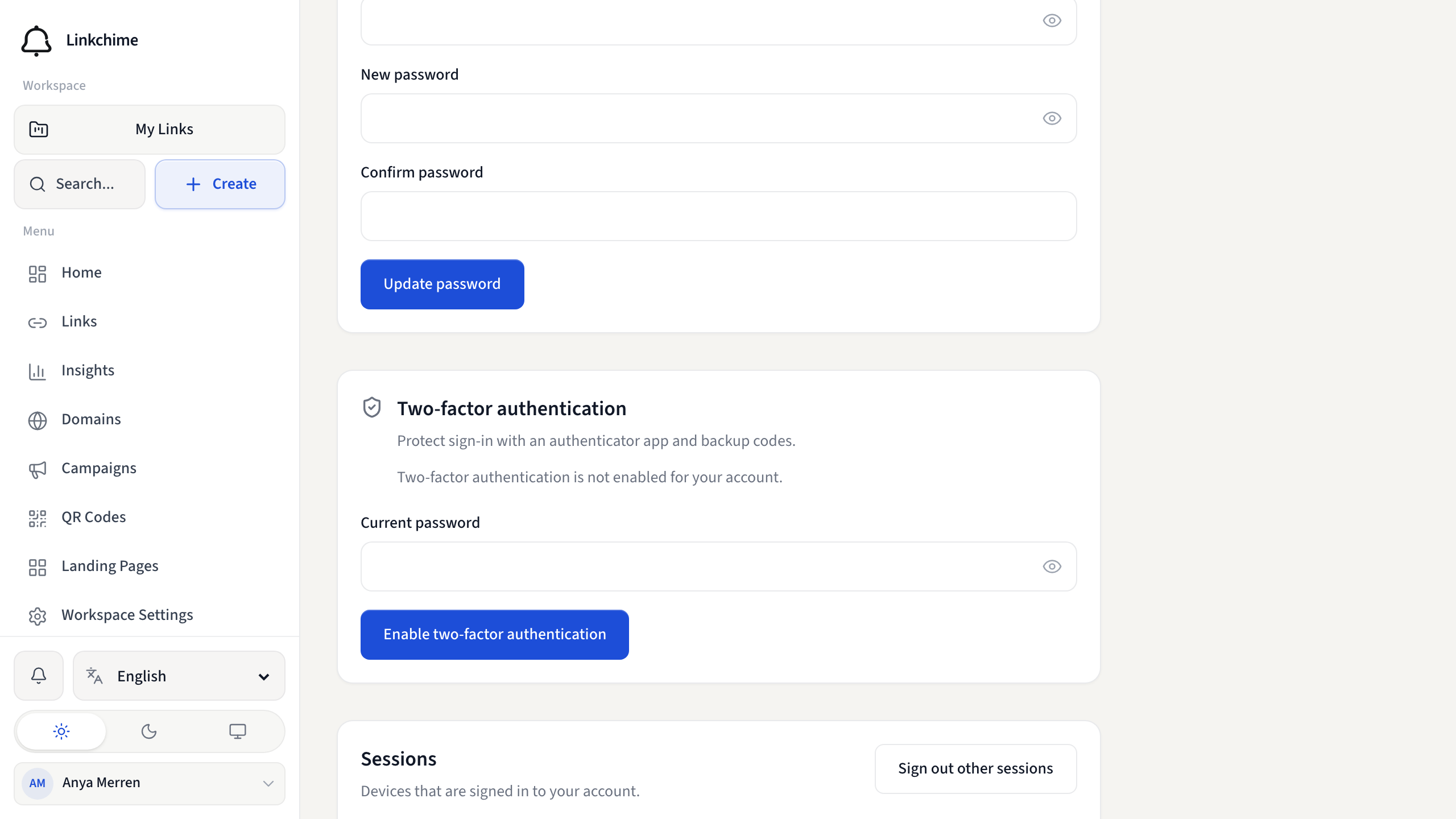
Two-factor authentication (2FA) asks for a code from an authenticator app (TOTP) after you sign in. Keep the backup codes in a safe place.
Before you start
Steps
Enable 2FA
- Click your profile icon → Account.
- Find Two-factor authentication.
- Enter your password and start authenticator setup.
- Scan the QR code (or type the secret) in your authenticator app.
- Enter the current code to confirm. Save the backup codes.
Disable 2FA
- In Account, find Two-factor authentication.
- Enter your password and disable it.
What happens next
- Enabled — after signing in, enter an authenticator code or a backup code. See Two-factor sign-in.
- Disabled — you sign in without an extra code, unless your organization requires 2FA.
Tips
- Each backup code works once.
- You can review and revoke sessions on the same Account page.
Related pages
Ready to try it?
Create a free account and put these guides to work on your next campaign.