
AI assistant
What this is
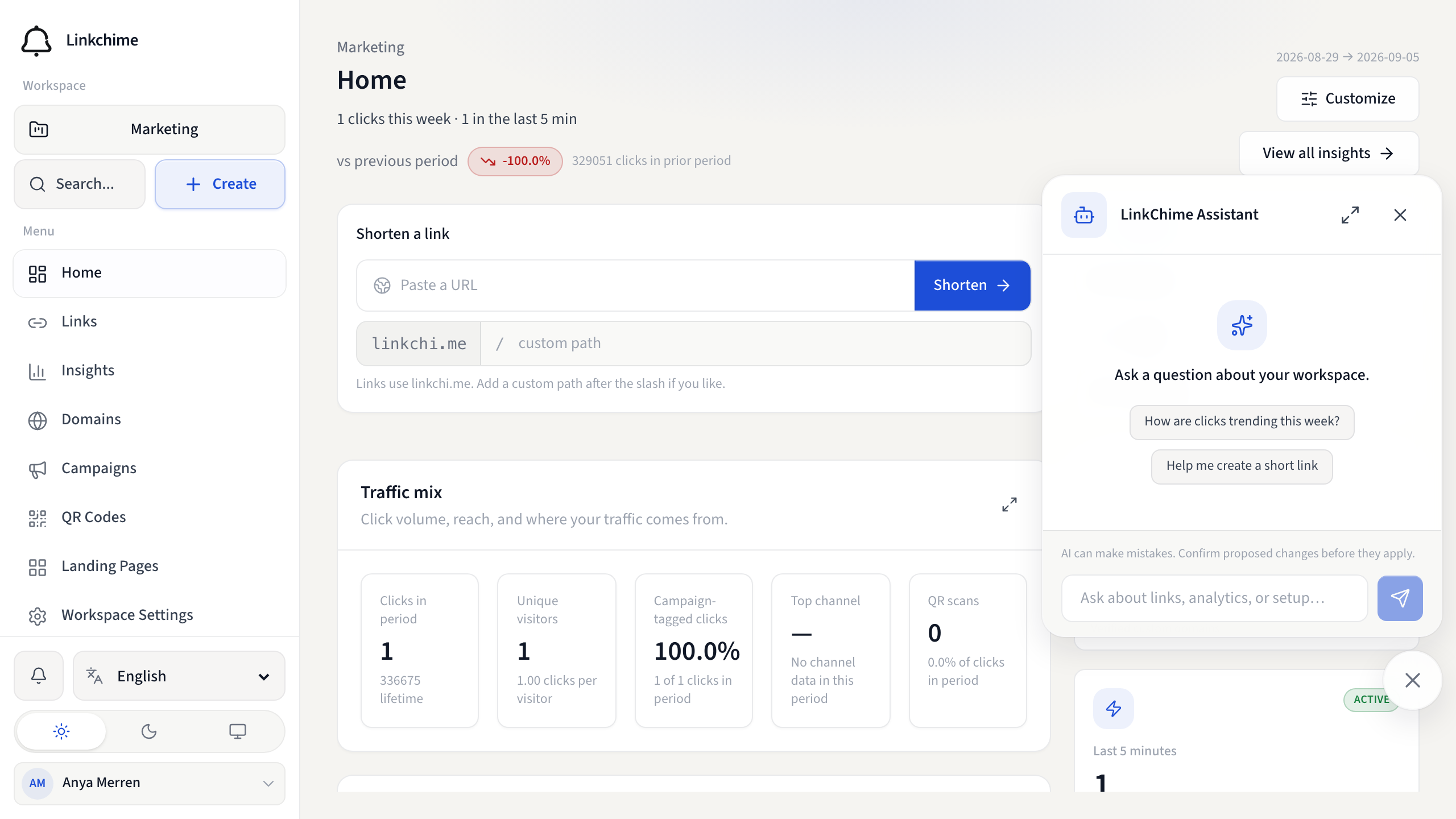
An in-app workspace agent that can answer questions about your links, analytics, landing pages, and campaigns; look up product help; and propose changes you confirm before they apply.
Before you start
- AI assistant must be available on your plan.
- You haven't reached your daily message limit.
- Platform admin must enable the assistant (and optionally allow write proposals).
Steps
- Click the floating Assistant button (bottom corner of the screen).
- On first use, read the notice about workspace data being sent with messages. Click Got it.
- Type a question, or tap a suggested prompt for the page you are on.
- Click Send.
What it can do
- Query live workspace data (links, analytics, landing pages, campaigns).
- Search product help docs.
- Propose write actions such as creating or updating a short link, starting a campaign, creating up to 50 links at once, or marking a link as a QR code.
- Create with AI: when you paste a destination on Home or in the create-link form, suggested slugs, titles, and UTM tags appear as chips you can apply.
- Weekly Pulse: Insights overview shows an automatic summary of what moved in the selected period, with an Act on this prompt that opens the assistant.
Proposed writes in chat appear as cards. Click Confirm to apply or Cancel to discard. Proposals expire after about 10 minutes. Analysts (read-only workspace role) can chat and query, but cannot confirm writes.
Create with AI and Weekly Pulse use the same provider and daily message limit as chat. Cached Pulse views do not count against the limit.
For Cursor or Claude, use MCP for AI agents instead of the in-app chat.
What happens next
The assistant replies using workspace context, tool results, and your conversation. One send counts as one daily message even if the assistant uses several tools behind the scenes.
Tips
- Do not paste passwords, API keys, or other secrets into the chat.
- AI can make mistakes — always review proposed actions before confirming.
- If you hit the daily message limit, try again tomorrow or upgrade your plan.
Related pages
Ready to try it?
Create a free account and put these guides to work on your next campaign.