
Start a campaign
What this is
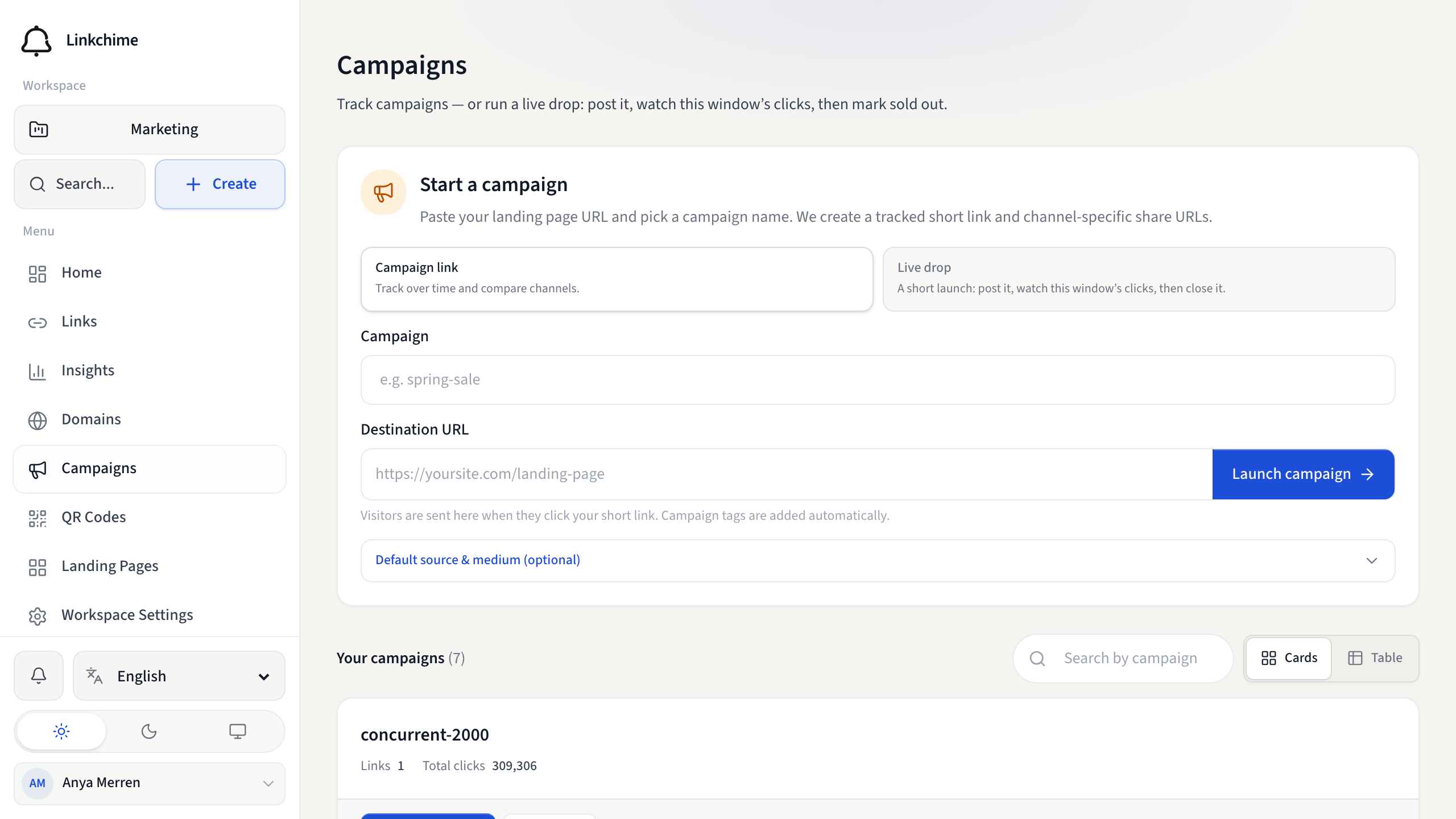
Quickly create a tracked short link with campaign tags and channel-specific share URLs for a marketing effort.
Before you start
- You have write access to the workspace.
Steps
- Open Campaigns from the sidebar.
- In Start a campaign, paste your Destination URL (landing page or offer).
- Enter a Campaign name (this becomes the UTM campaign tag).
- Optionally set default Source and Medium.
- Click Launch campaign.
To run a live drop instead, choose Live drop at the top of the form, enter a Drop name, optional description, and a vibe, then click Start drop. The drop name is used as the campaign tag. The short link still goes to your destination until you mark sold out. After launch, copy a caption, save a share image (or flyer PDF) from the success screen, or choose Open this drop.
If you have live drops running, they appear at the top of the Campaigns page for quick access.
Add another link to the same campaign
- Open a campaign's detail page.
- Click Add another link.
- Paste a different destination URL.
- The new link uses the same campaign tags but gets its own short URL.
You can also choose Live drop here to launch another named drop in this campaign.
What happens next
Your campaign link is live. Use the Share by channel links to distribute across platforms. The campaign appears in your campaigns list.
Tips
- You can also tag existing links by setting the Campaign field in link settings.
- Campaigns are derived from UTM tags — links without a campaign tag won't appear here.
Related pages
Ready to try it?
Create a free account and put these guides to work on your next campaign.