Drop mode
What this is
Drop mode is a short launch on a short link. Name it, post a caption with a matching image, watch clicks for this window, then mark sold out. Until you mark sold out, people who tap the link still go to your destination. Sold out stops the redirect and shows a themed page instead.
Starting a drop does not publish the link (it is already published). It starts the click clock on this card and unlocks captions you can paste.
Before you start
- The link is published and enabled.
- Drop mode is available on your plan (it is on for Free, Pro, and Business unless an admin turned it off).
Start a drop
- Open a link and stay on the Overview tab.
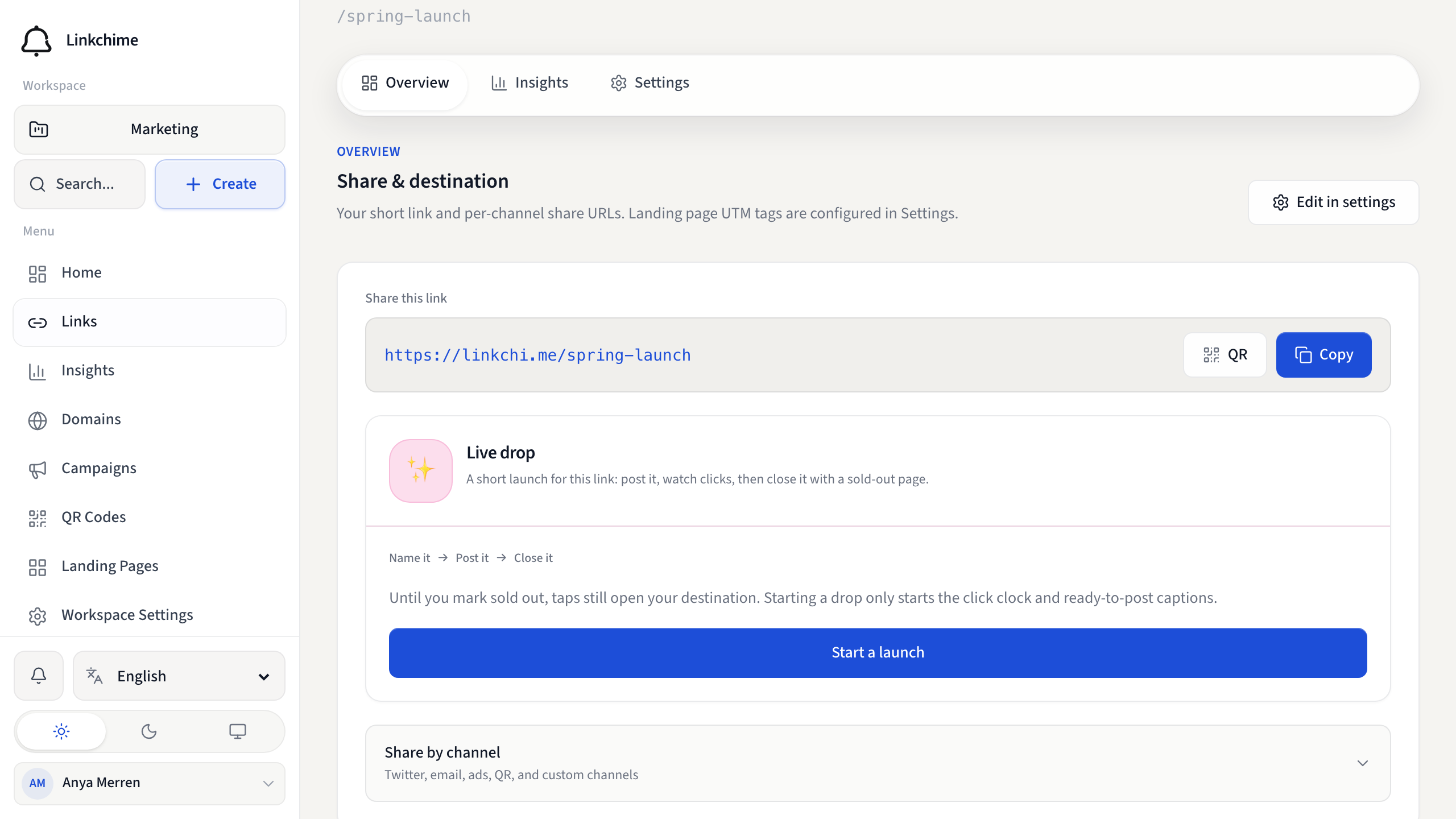
- In Live drop, choose Start a launch.
- Enter a Drop name (required) and an optional Description. The name is filled from the link title when you can.
- Pick a Vibe (Pastel, Neon, Bold, or Classic) and an emoji — this colors the share image and the sold-out page.
- Preview the post. Open Edit caption or Customize image if you want. Copying is locked until you go live so those clicks count here.
- Click Go live.
After you are live, pick a channel, then Announce or Still live. Choose an image size (story, feed, recap, or poster). Copy the caption, save the image, then paste in that app. You can also copy the link, copy the image, download a print flyer PDF, or share from this device.
Open Customize image to pick a layout (headline, photo, or type), show or hide the QR code, link, brand name, and button, and add a logo or product photo. The QR and the link on the image use the short URL without channel tags, so a printed flyer stays valid. Captions still use tracked channel URLs.
Sold-out headline and message are optional — open Name, vibe, and sold-out page while the drop is live, or edit them after you mark sold out. If you leave them blank, visitors see the drop name and description. The vibe still colors that page.
If the link has no campaign tag yet, Linkchime stamps one from the drop name, title, or slug so the link appears under Campaigns.
You can also choose Live drop when you start a campaign. After launch, copy a caption from the success screen or choose Open this drop.
During the drop
The Overview panel shows the drop name, a Live badge, and the click total since you started. It refreshes about every 10 seconds. Clicks still go to your destination.
You can edit the name, vibe, emoji, caption, and share image while live. Use Reset this post to restore the suggested caption for the current vibe.
Links in your list also show a Live drop chip so you can find the cockpit again.
Mark sold out
- Click Mark sold out and confirm.
- Visitors who open the short link see your themed sold-out page — no redirect, no countdown.
- The recap freezes click totals from this drop. Later sold-out page views still appear in Insights as leftover demand.
The share kit stays available so you can post a closed caption and recap image. You can still edit the sold-out page copy. The link stays enabled. Sold out is not the same as turning the link off.
Recap card
Download or copy the recap image from the share card — choose the Recap 4:5 size, or the closed caption. Recap cards include the drop name, vibe, click total, top channels, and date range. Use Download flyer PDF for a print-ready page with a large QR code.
Restart a closed drop
Click Restart drop and confirm. Visitors can reach the destination again. The name, vibe, emoji, and posts stay. Click totals start a new window and replace the previous recap.
Related pages
Ready to try it?
Create a free account and put these guides to work on your next campaign.