
Create and switch workspaces
What this is
Workspaces keep links, domains, and analytics separate. Switch between them to work on different projects.
Before you start
- You haven't reached your plan's workspace limit.
Steps
Switch workspace
- Click the workspace name at the top of the sidebar.
- Select a workspace from the list.
- The app reloads with that workspace's links, domains, and analytics.
Create a workspace
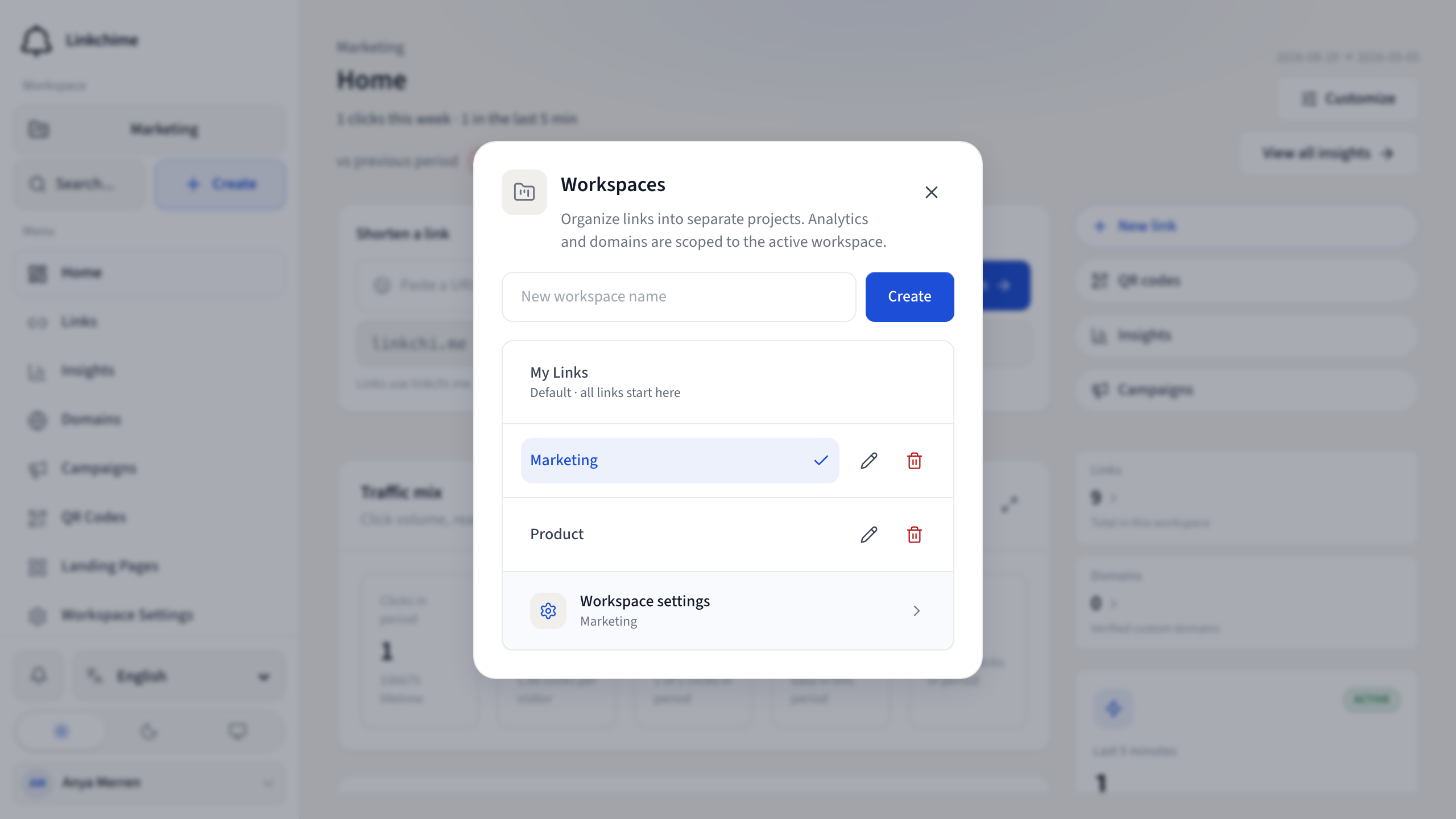
- Click the workspace name in the sidebar.
- Click Manage (or open the workspace menu).
- Enter a New workspace name.
- Click Create.
Rename a workspace
- Open the workspace menu.
- Click the rename icon next to a workspace (owner only).
- Enter the new name and save.
Delete a workspace
- Open the workspace menu.
- Click the delete icon next to a workspace (owner only).
- Confirm in the dialog.
What happens next
The active workspace determines what you see in Links, Insights, Domains, and other pages.
Tips
- Your default personal workspace cannot be renamed or deleted.
- Deleting a workspace permanently removes all its links, domains, and analytics.
Related pages
Ready to try it?
Create a free account and put these guides to work on your next campaign.