
Invite team members
What this is
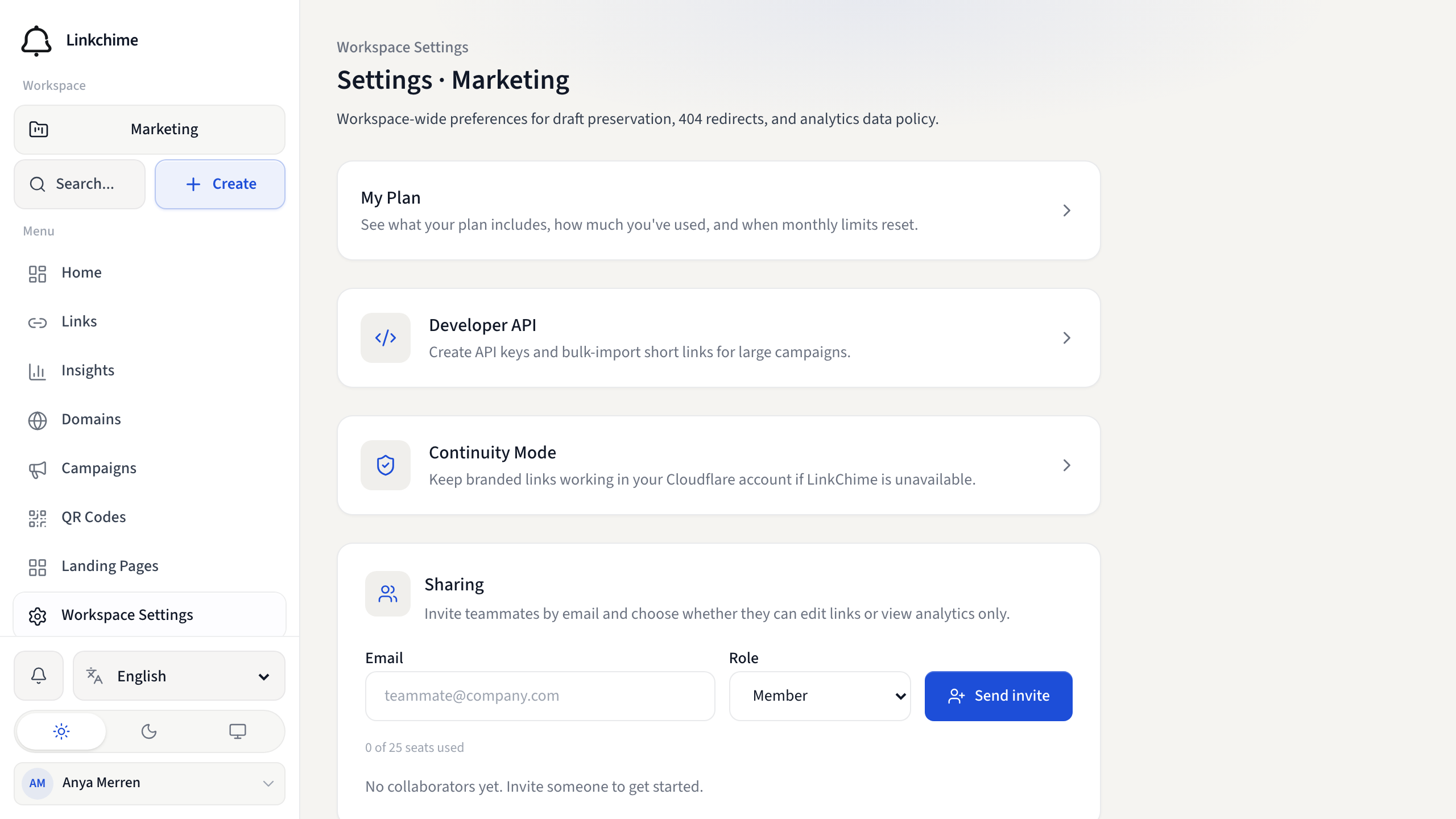
Invite teammates to collaborate in a shared workspace. They can edit links or view analytics depending on their role.
Before you start
- You are the workspace owner.
- Workspace sharing must be available on your plan.
- You haven't reached your plan's member limit.
Steps
- Open Workspace Settings from the sidebar.
- Find the Sharing section.
- Enter your teammate's Email.
- Choose a Role:
- Member — can create and edit links, domains, and landing pages
- Analyst — can view links and Insights but cannot edit
- Click Send invite.
Manage members and invites
- Members — change a member's role or remove them
- Pending invites — revoke an invite before it's accepted
What happens next
Your teammate receives an email with an invite link. They must sign in (or create an account) with the invited email to accept.
Tips
- Invites expire after 7 days.
- The seat counter shows how many members and pending invites you've used.
Related pages
Ready to try it?
Create a free account and put these guides to work on your next campaign.