
Scheduled reports
What this is
Receive analytics summaries by email on a daily, weekly, or monthly schedule. Available on team workspaces.
Before you start
- Scheduled reports must be available on your plan.
- You need a team workspace (not a personal workspace).
- You must be the workspace owner.
Steps
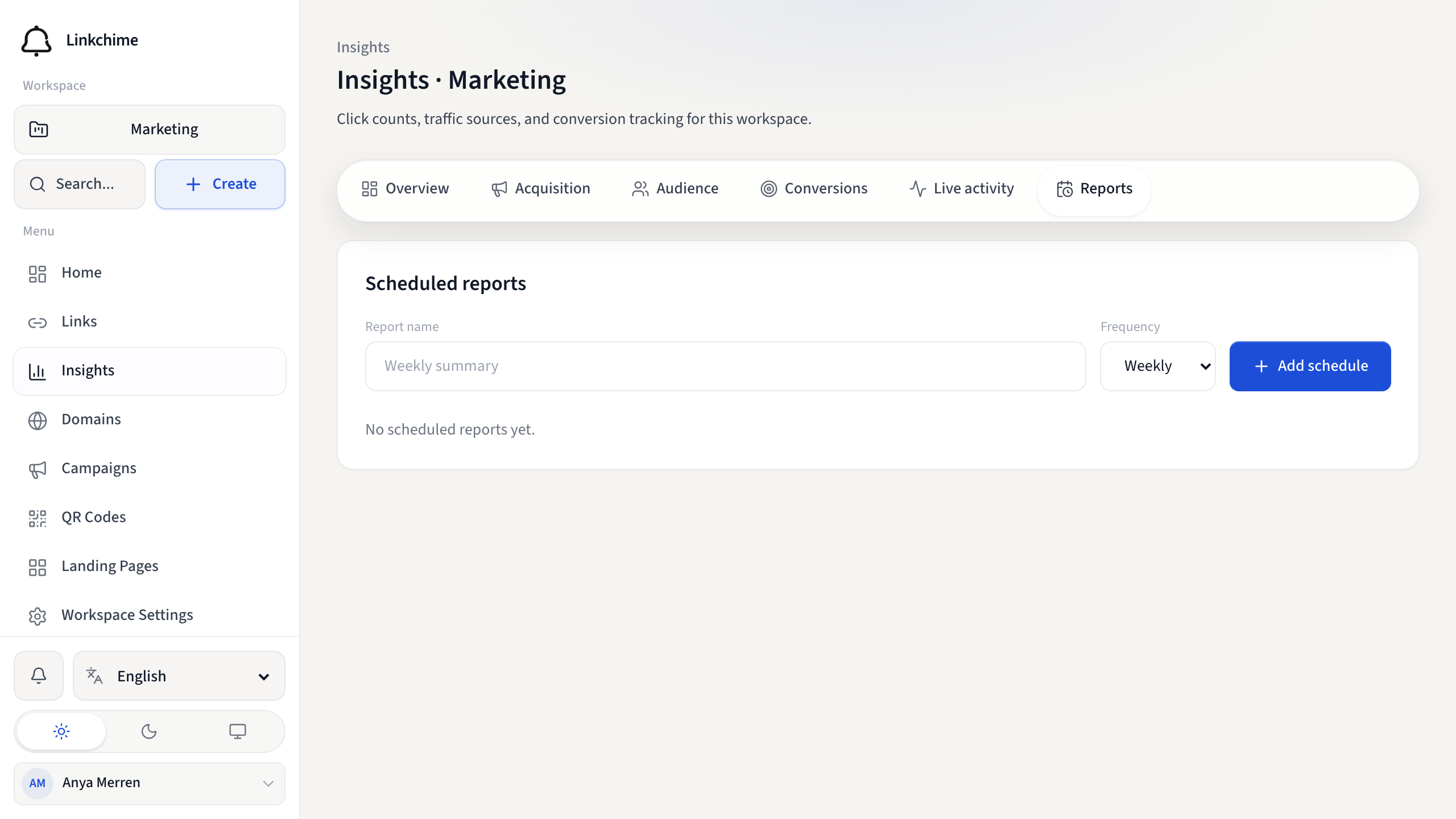
- Open Insights.
- Click the Reports tab.
- Enter a Report name (for example
Weekly summary). - Choose a Frequency: Daily, Weekly, or Monthly.
- Click Add schedule.
Manage schedules
- Toggle a schedule between Enabled and Paused.
- Download past report runs from the list.
- Delete a schedule you no longer need.
What happens next
Reports are generated on schedule and sent to your email. Past runs appear in the reports list with row counts and status.
Tips
- Personal workspaces show a hint to create a team workspace for scheduled reports.
- Pause schedules during quiet periods instead of deleting them.
Related pages
Ready to try it?
Create a free account and put these guides to work on your next campaign.