
Manage your links
What this is
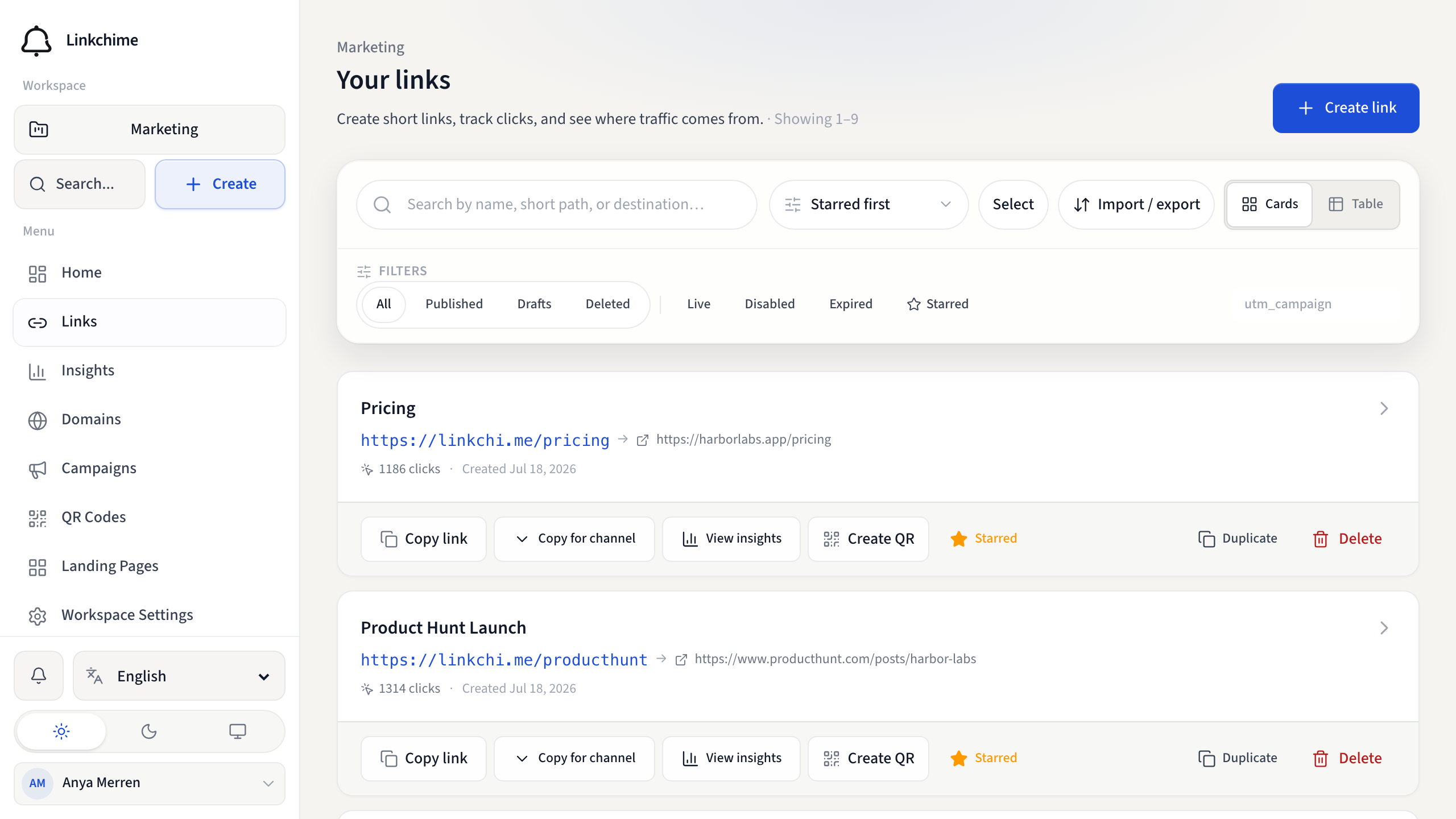
The Links page shows all short links in your workspace. Search, filter, sort, and switch between card and table views.
Before you start
- You're signed in to a workspace with at least one link (or you're about to create one).
Steps
Find a link
- Open Links from the sidebar.
- Type in Search links to find by name, short path, or destination.
- Click Filters to narrow results:
- Status — All, Published, Drafts, or Deleted
- Availability — Live, Disabled, or Expired
- Starred — show starred links only
- Domain — filter by short-link domain
- Campaign — filter by UTM campaign tag
- Click Clear to reset filters.
Sort and layout
- Use the Sort links dropdown: Starred first, Newest, Oldest, Most clicks, or Name (A-Z).
- Toggle between Cards and Table layout using the list layout button.
Star a link
- On a link card, click the star icon.
- Starred links sort to the top when Starred first is selected.
Open a link
- Click a link card or row to open its detail page.
- Use the Overview, Insights, and Settings tabs.
What happens next
You can edit, share, duplicate, or delete links from the detail page or card actions menu.
Tips
- Deleted links appear under the Deleted filter for 30 days — see Delete and restore.
- Press ⌘K or Ctrl+K to search links from anywhere.
Related pages
Ready to try it?
Create a free account and put these guides to work on your next campaign.