
Import and export
What this is
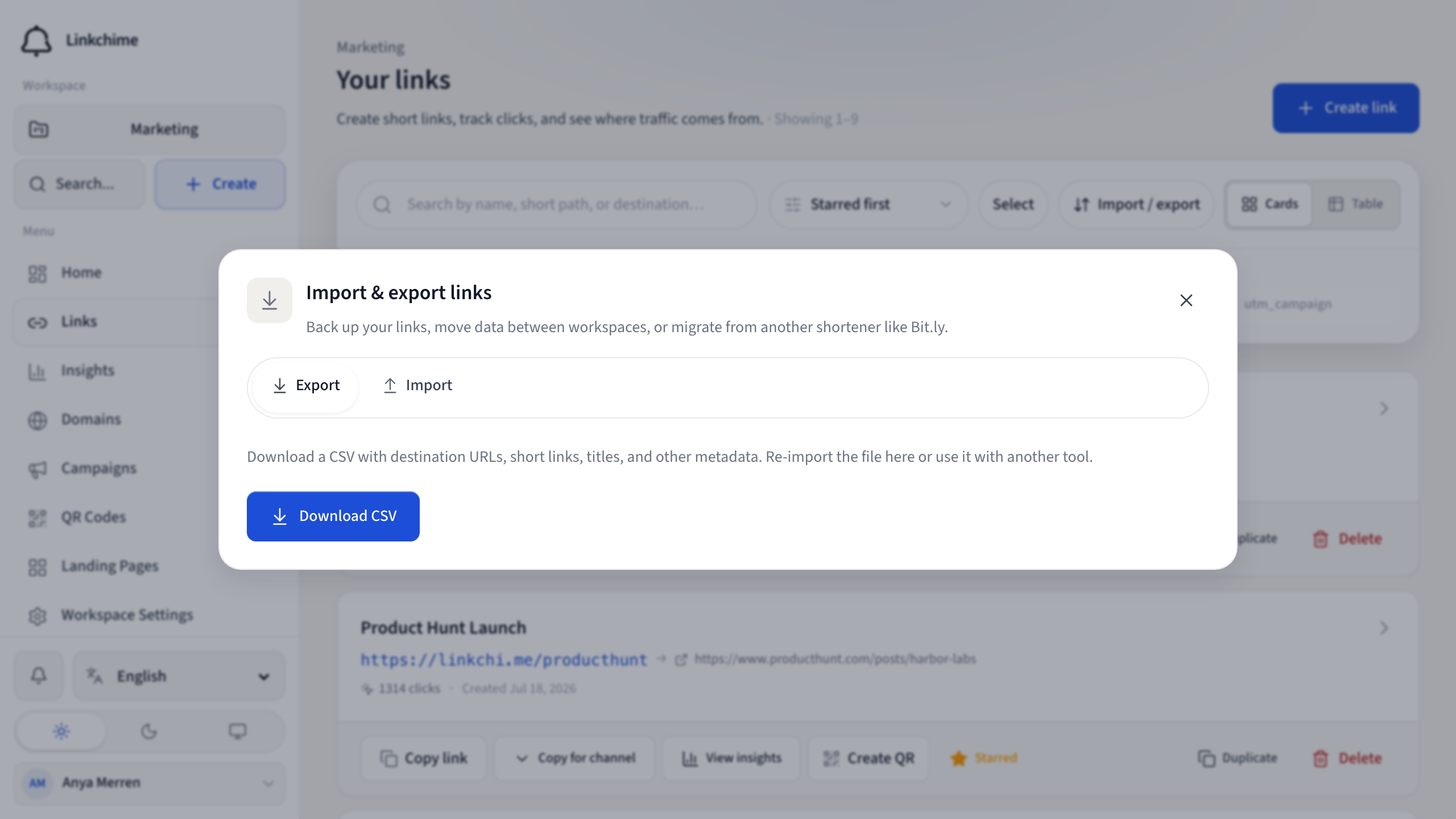
Back up your links, move data between workspaces, or migrate from another shortener like Bit.ly using CSV or JSON files.
Before you start
- You have write access to the workspace.
- Bulk import requires API access on your plan.
Export links
- Open Links.
- Click Import / export.
- On the Export tab, choose:
- All links in this workspace — every link
- Current search and filters — only what you see on screen
- Click Download CSV.
Import links
- Open Links → Import / export.
- On the Import tab, click Choose file or drag a CSV/JSON file.
- Supported formats: Bit.ly exports, Rebrandly, and Linkchime CSV files.
- Review the preview showing how many links will be imported.
- Click Start import.
- Wait for the import to finish. You'll see how many succeeded, failed, or were skipped.
What happens next
Imported links appear in your Links list. Failed rows are listed in the import results.
Tips
- If your file exceeds your plan's bulk import size limit, split it into smaller files or upgrade your plan.
- Export regularly as a backup before large changes.
Related pages
Ready to try it?
Create a free account and put these guides to work on your next campaign.