
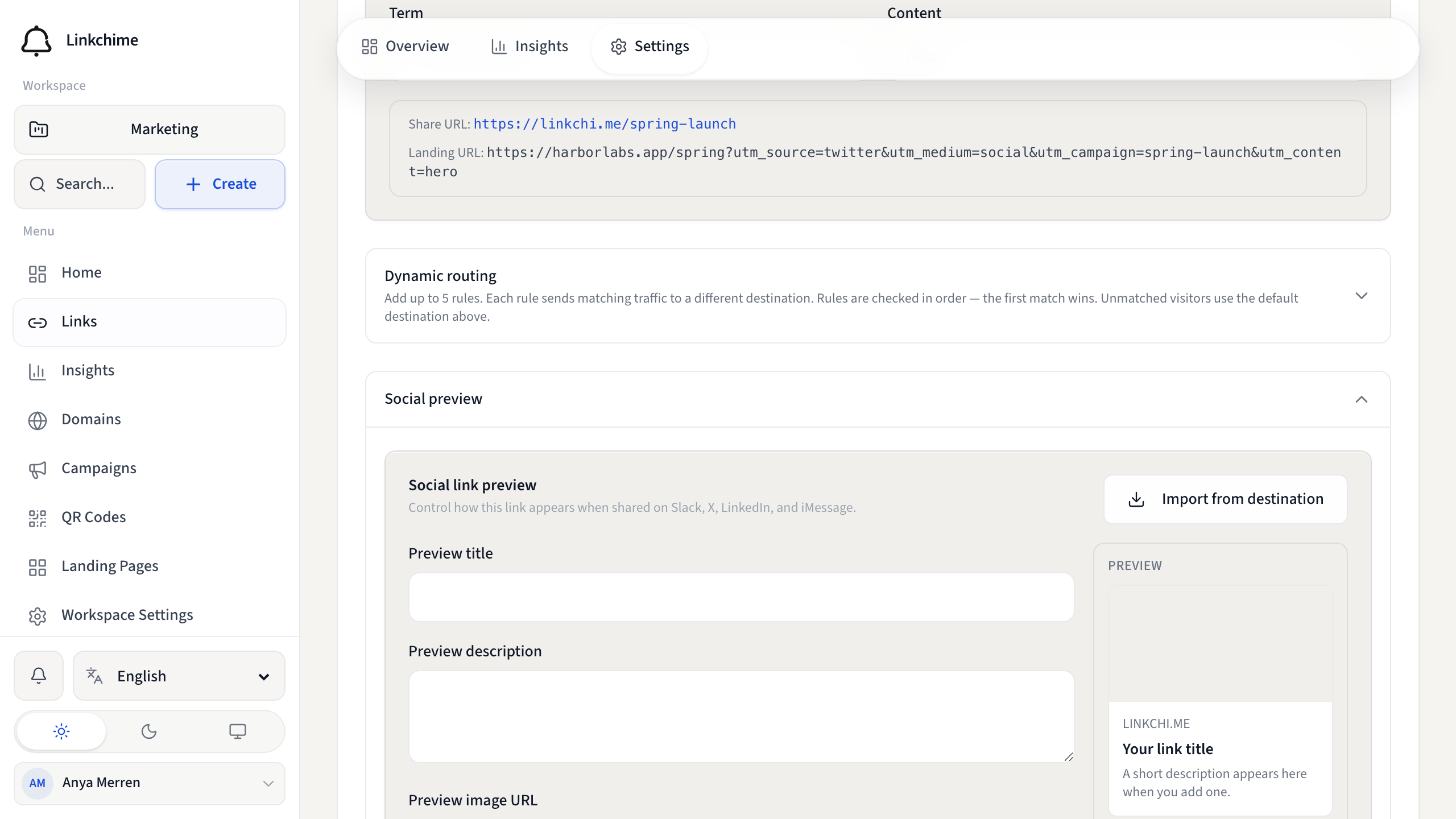
Social link preview
What this is
Control how your link appears when shared on Slack, X, LinkedIn, iMessage, and other platforms — with a custom title, description, and image.
Before you start
- Social link previews must be available on your plan.
- You have a link open on the Settings tab.
Steps
- Open a link's Settings tab.
- Find Social link preview.
- Set Preview title, Preview description, and/or Preview image URL.
- Optionally click Import from destination to pull metadata from the destination page.
- Review the preview card on the right.
- Click Save changes.
What happens next
When someone shares your short link on supported platforms, they'll see your custom preview card.
Password-protected links still show this card to social crawlers. Visitors who open the link themselves still have to enter the password.
Tips
- Use a square or landscape image URL (HTTPS) for best results.
- Leave fields blank to use the destination page's default metadata.
- Combine with password protection when you want a custom share card without making the destination public.
Related pages
Ready to try it?
Create a free account and put these guides to work on your next campaign.