
Dynamic routing
What this is
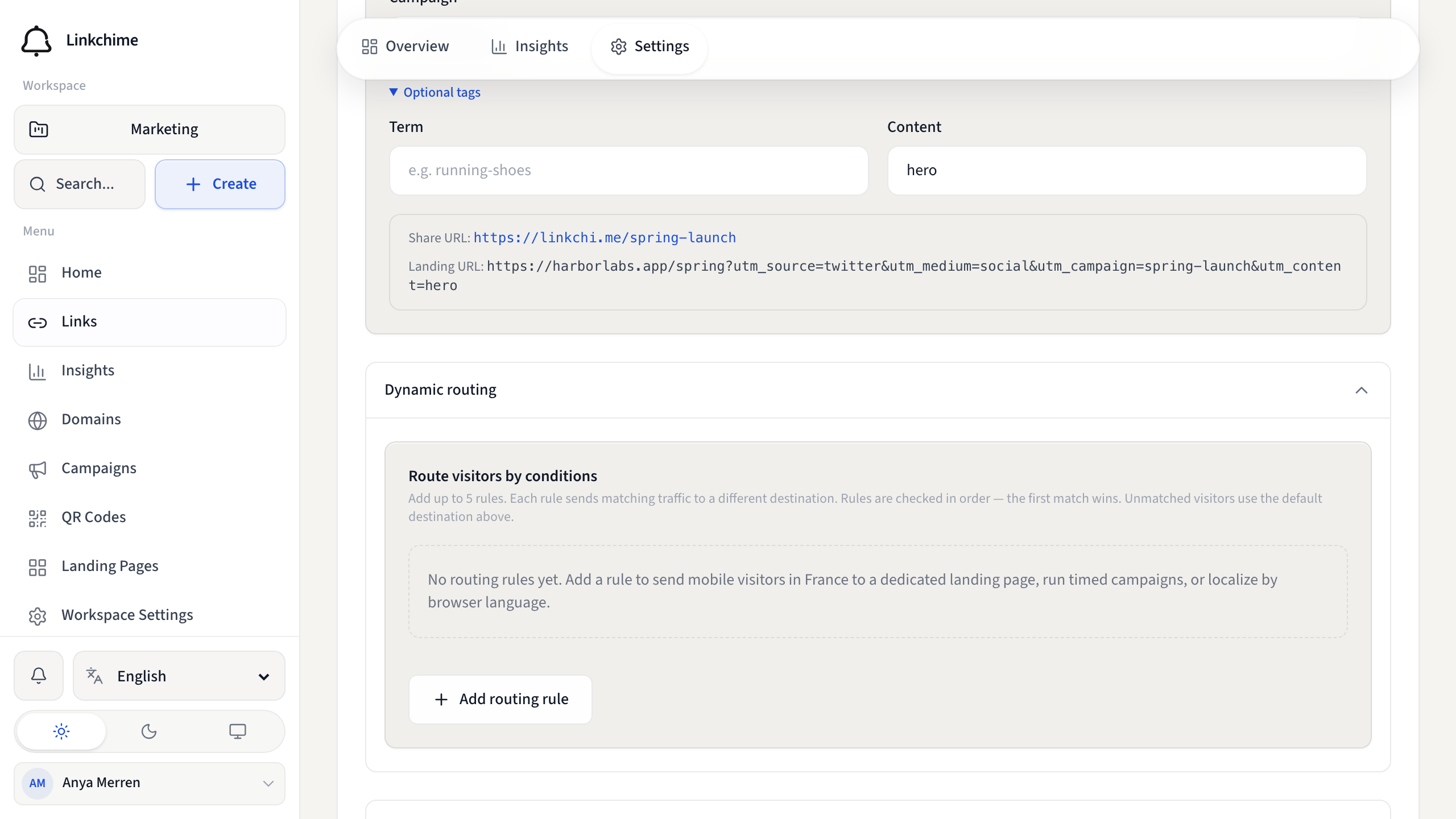
Send different visitors to different destinations based on country, device, browser language, or schedule. Rules are checked in order — the first match wins.
Before you start
- Dynamic link routing must be available on your plan.
- You have a link open on the Settings tab.
Steps
- Open a link's Settings tab.
- Find Dynamic routing.
- Click Add routing rule.
- For each rule, set:
- Destination URL — where matching visitors go
- Countries — two-letter codes (for example
FR, DE, US) - Devices — Mobile, Tablet, or Desktop
- Browser languages — language codes (for example
fr, en-us) - Active from / Active until — optional schedule
- Add up to 5 rules. Rules are evaluated top to bottom.
- Click Save changes.
What happens next
Visitors who match a rule go to that rule's destination. Everyone else goes to the default destination URL.
Tips
- Leave a condition field empty to ignore it (match any value).
- Example: country
FR+ deviceMobilesends French mobile users to a dedicated page. - Unmatched visitors always use the main Destination URL.
Related pages
Ready to try it?
Create a free account and put these guides to work on your next campaign.